These instructions apply to **Eduphoria testing** on **Chromebooks** only.
These steps will need to be completed by each student for each testing session. The extension will need to be installed at the beginning of the session and removed at the end. The extension ***should not*** be left installed for privacy and security reasons. ### Install the Secure Browser extension 1. **Log in** to the chromebook 2. Click the **circle menu** in the lower left corner of the screen 3. Click on the **Web Store** icon (you can use the search bar if it doesn't show up immediately) 4. Click **Extensions** in the upper-left part of the page 5. Click **Recommended** on the left side of the page [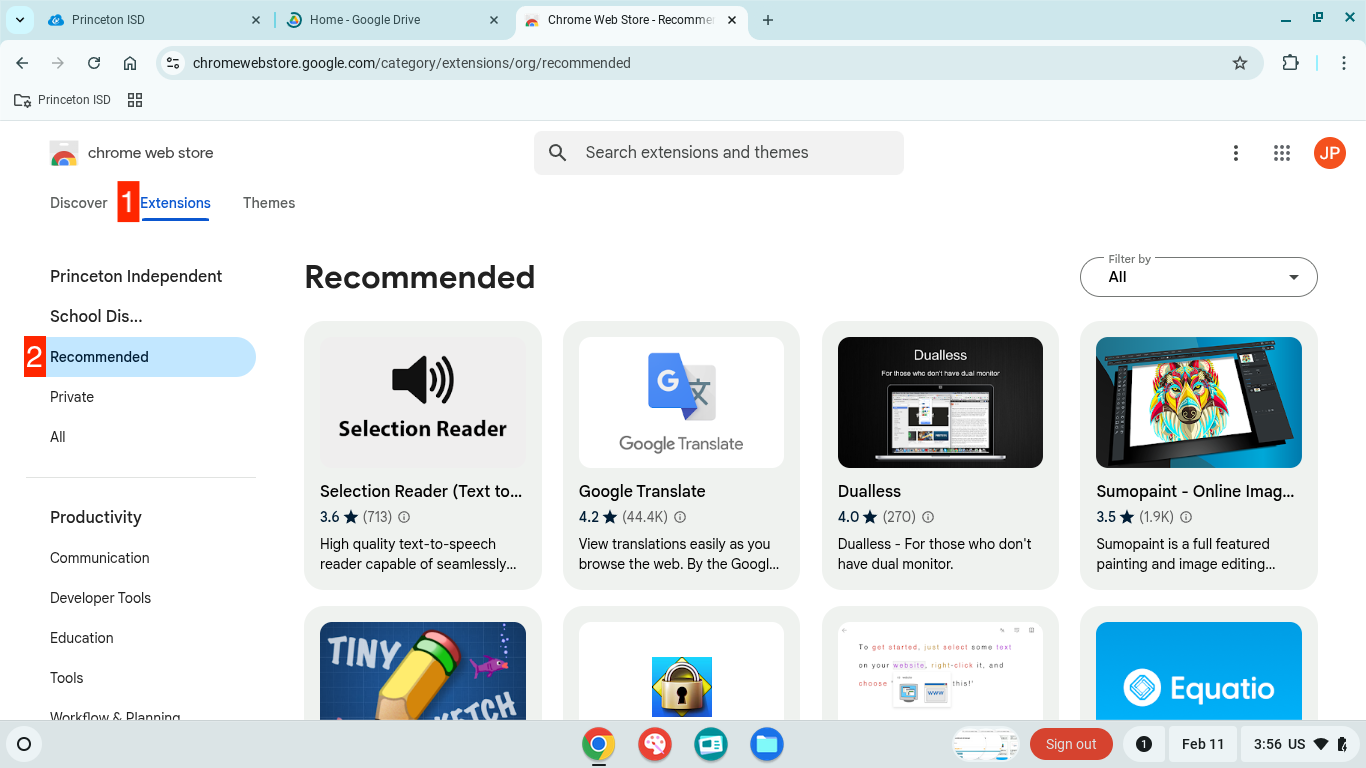](https://kb.princetonisd.net/uploads/images/gallery/2025-02/UZkRncLUsGpeviVN-image-2.png) 6. Click **Eduphoria LockDown Browser** 7. Click **Add to Chrome** 8. Click **Add Extension****After the test, make sure to remove the extension using the steps below.**
### Remove the Secure Browser extension 1. Open **Chrome** 2. Click the **puzzle piece** icon on the right side of the top bar 3. Click the **snowman icon** next to **Eduphoria LockDown Browser** 4. Click Remove from Chrome[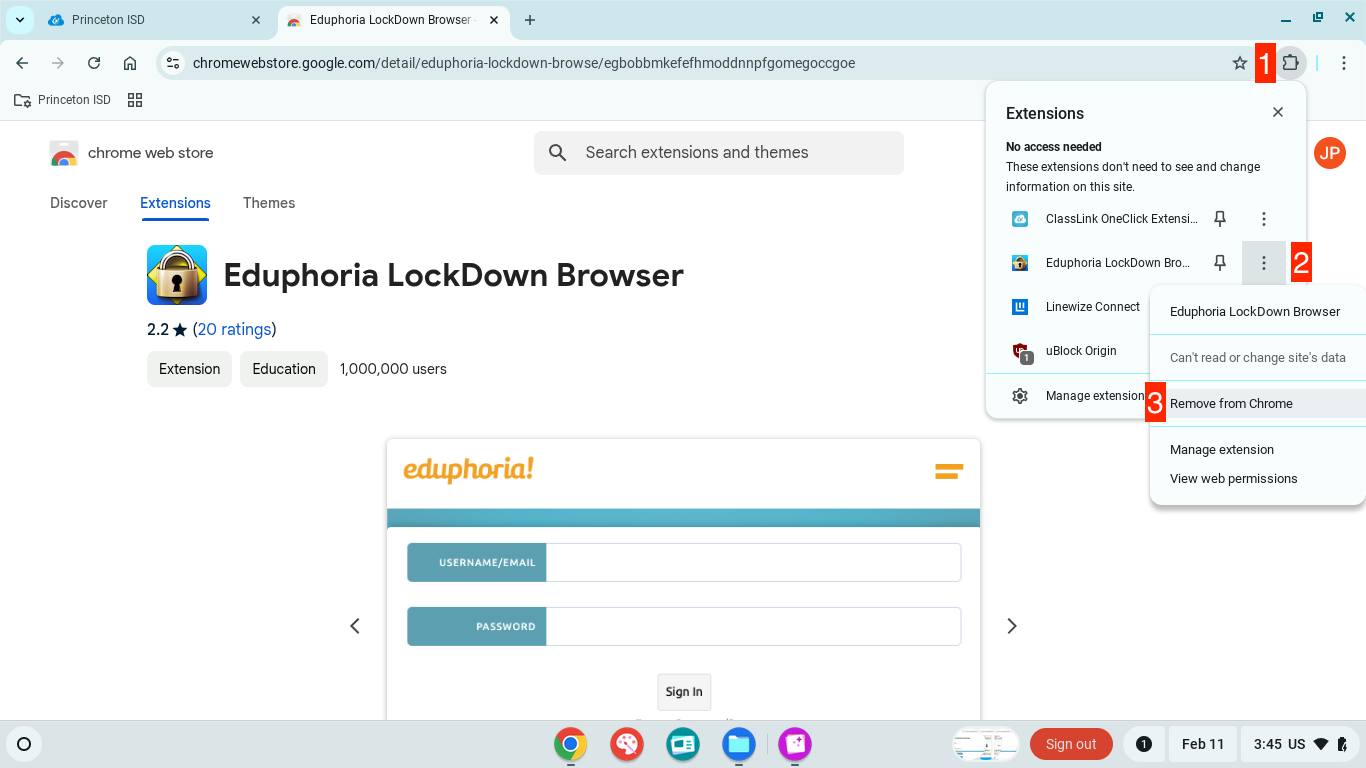](https://kb.princetonisd.net/uploads/images/gallery/2025-02/JMVDkQM9kX8fuuTl-image-1.png) 5. Click Remove