# Manage Google Team Drives

This article is a quick overview of basic Google Team Drive functionality. For more information see Google's Learning Center article on the subject ([link](https://gsuite.google.com/learning-center/products/drive/get-started-team-drive/#!/)).

### Creating a Team Drive

1. From the Team Drives page ([link](https://drive.google.com/drive/team-drives)), click **New** (upper-left corner).  
    [![ManagingGoogleTeamDrives1.PNG](https://kb.princetonisd.net/uploads/images/gallery/2018-08-Aug/scaled-840-0/ManagingGoogleTeamDrives1.PNG)](https://kb.princetonisd.net/uploads/images/gallery/2018-08-Aug/ManagingGoogleTeamDrives1.PNG)
2. Give the Team Drive a **title** and click **Create**.  
    [![ManagingGoogleTeamDrives2.PNG](https://kb.princetonisd.net/uploads/images/gallery/2018-08-Aug/scaled-840-0/ManagingGoogleTeamDrives2.PNG)](https://kb.princetonisd.net/uploads/images/gallery/2018-08-Aug/ManagingGoogleTeamDrives2.PNG)
3. You will be prompted to complete a short tutorial. If you already know how to use Team Drives click **Got It** to be sent to your new Team Drive. Otherwise, feel free to complete the tutorial.
4. To access your new team drive, find it in the **left panel** under **Team Drives**.  
    [![ManagingGoogleTeamDrives3.PNG](https://kb.princetonisd.net/uploads/images/gallery/2018-08-Aug/scaled-840-0/ManagingGoogleTeamDrives3.PNG)](https://kb.princetonisd.net/uploads/images/gallery/2018-08-Aug/ManagingGoogleTeamDrives3.PNG)

### Adding Team Drive Members

<p class="callout info">You must have Full permissions to the given team drive in order to add members.</p>

1. Navigate to the desired Team Drive.
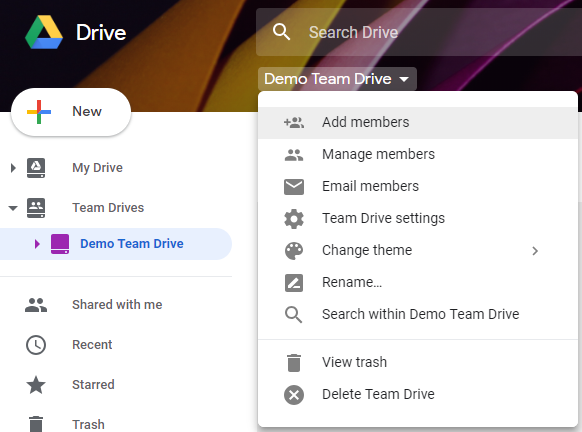
2. Click on the **name of the Team Drive** (below the search bar) and click **Add members**.  
    [![ManagingGoogleTeamDrives4.PNG](https://kb.princetonisd.net/uploads/images/gallery/2018-08-Aug/scaled-840-0/ManagingGoogleTeamDrives4.PNG)](https://kb.princetonisd.net/uploads/images/gallery/2018-08-Aug/ManagingGoogleTeamDrives4.PNG)
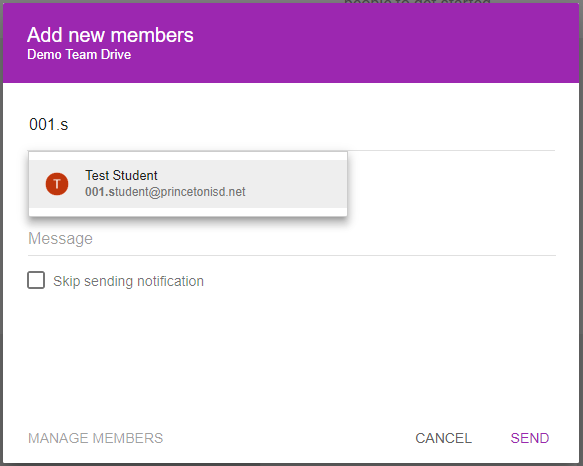
3. Start typing the desired person's email address until their name appears then click on their name.  
    [![ManagingGoogleTeamDrives5.PNG](https://kb.princetonisd.net/uploads/images/gallery/2018-08-Aug/scaled-840-0/ManagingGoogleTeamDrives5.PNG)](https://kb.princetonisd.net/uploads/images/gallery/2018-08-Aug/ManagingGoogleTeamDrives5.PNG)
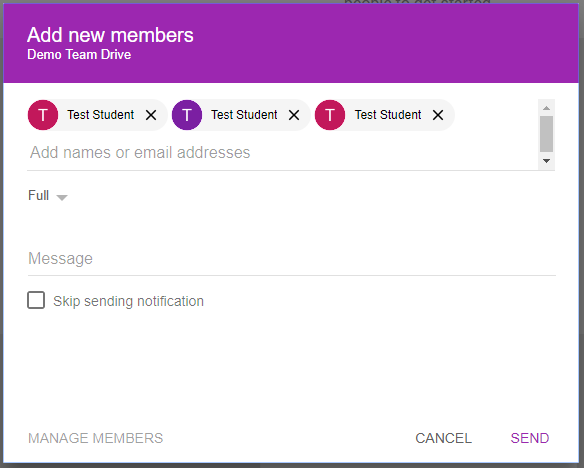
4. Repeat step 3 until all of the desired users are selected. Your screen should look similar to the below image.  
    [![ManagingGoogleTeamDrives6.PNG](https://kb.princetonisd.net/uploads/images/gallery/2018-08-Aug/scaled-840-0/ManagingGoogleTeamDrives6.PNG)](https://kb.princetonisd.net/uploads/images/gallery/2018-08-Aug/ManagingGoogleTeamDrives6.PNG)
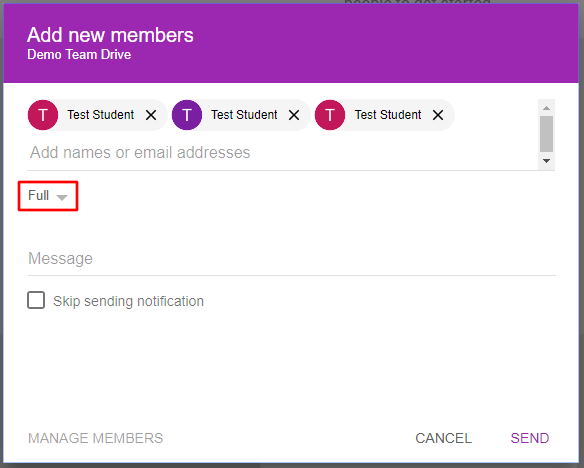
5. Click on the permissions dropdown (in red below).  
    [![ManagingGoogleTeamDrives6-1.png](https://kb.princetonisd.net/uploads/images/gallery/2018-08-Aug/scaled-840-0/ManagingGoogleTeamDrives6-1.png)](https://kb.princetonisd.net/uploads/images/gallery/2018-08-Aug/ManagingGoogleTeamDrives6-1.png)
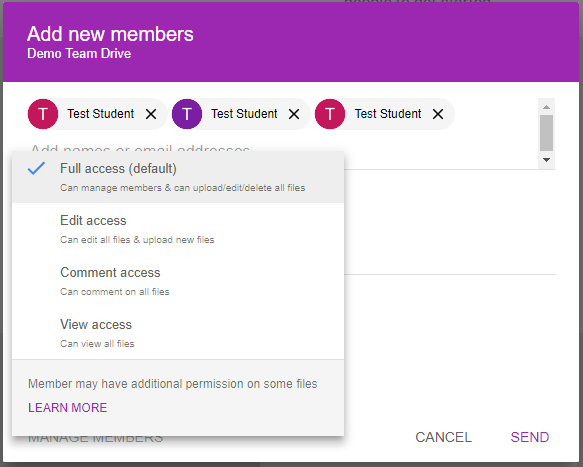
6. Select the desired permission level. This will apple to all of the users that you have selected in the previous step.  
    [![ManagingGoogleTeamDrives7.PNG](https://kb.princetonisd.net/uploads/images/gallery/2018-08-Aug/scaled-840-0/ManagingGoogleTeamDrives7.PNG)](https://kb.princetonisd.net/uploads/images/gallery/2018-08-Aug/ManagingGoogleTeamDrives7.PNG)
7. Fill in a short message which will be sent to each of the users you have selected. Alternatively, check the Skip sending notification box to prevent any message from being sent.  
    [![ManagingGoogleTeamDrives8.PNG](https://kb.princetonisd.net/uploads/images/gallery/2018-08-Aug/scaled-840-0/ManagingGoogleTeamDrives8.PNG)](https://kb.princetonisd.net/uploads/images/gallery/2018-08-Aug/ManagingGoogleTeamDrives8.PNG)
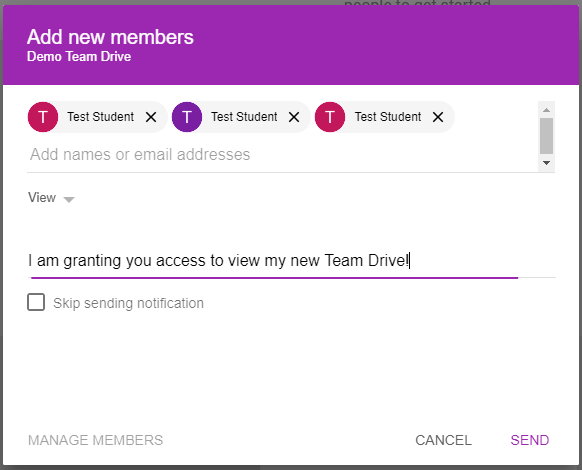
8. Click **Send** (or **Add**, depending on the state of the Skip sending notification check box).

### Managing and Removing Team Drive Members

<p class="callout info">You must have full permissions to the given team drive to manage or remove members.</p>

<p class="callout warning">It is possible to downgrade your own permissions and to remove yourself from the team drive. If you attempt to do either you will receive an additional warning prompt.</p>

1. Navigate to the desired Team Drive.
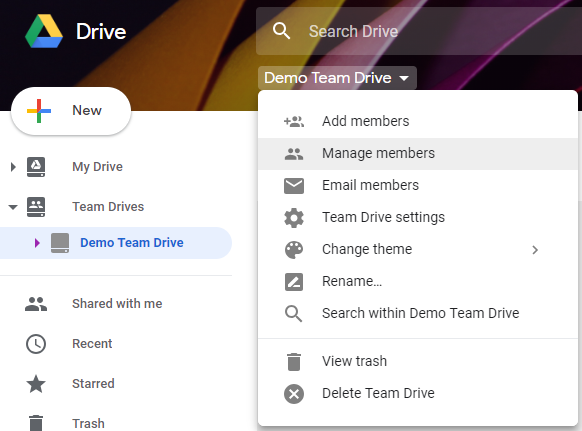
2. Click on the **name of the Team Drive** (below the search bar) and click **Manage members**.  
    [![ManagingGoogleTeamDrives9.PNG](https://kb.princetonisd.net/uploads/images/gallery/2018-08-Aug/scaled-840-0/ManagingGoogleTeamDrives9.PNG)](https://kb.princetonisd.net/uploads/images/gallery/2018-08-Aug/ManagingGoogleTeamDrives9.PNG)
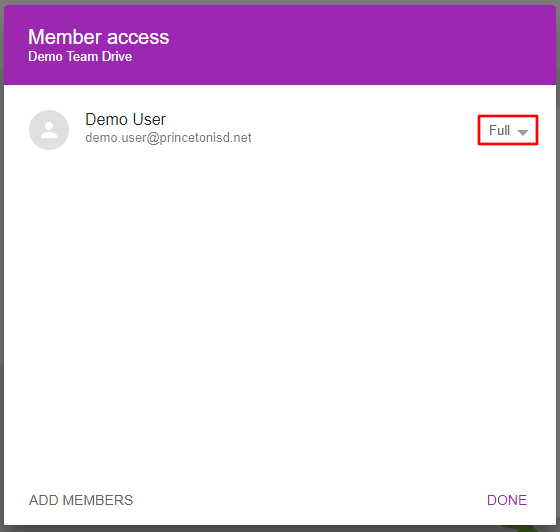
3. Click on the dropdown (in red below) to the right of the name of the person that you want to change or remove.  
    [![ManagingGoogleTeamDrives10-1.png](https://kb.princetonisd.net/uploads/images/gallery/2018-08-Aug/scaled-840-0/ManagingGoogleTeamDrives10-1.png)](https://kb.princetonisd.net/uploads/images/gallery/2018-08-Aug/ManagingGoogleTeamDrives10-1.png)
4. Click on the **desired permission level** to change permissions or click **Remove member** to remove their access entirely.  
    [![ManagingGoogleTeamDrives11.PNG](https://kb.princetonisd.net/uploads/images/gallery/2018-08-Aug/scaled-840-0/ManagingGoogleTeamDrives11.PNG)](https://kb.princetonisd.net/uploads/images/gallery/2018-08-Aug/ManagingGoogleTeamDrives11.PNG)
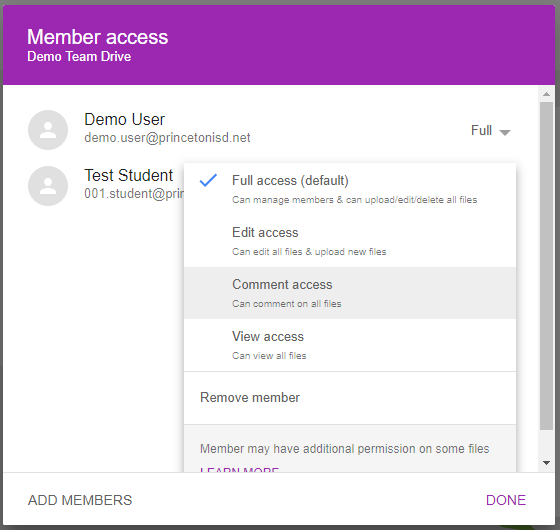
5. When finished, click **Done** to close the window.