
Managing Google Team Drives
This article is a quick overview of basic Google Team Drive functionality. For more information see Google's Learning Center article on the subject (link).
Creating a Team Drive
 Give the Team Drive a title and click Create.
 You will be prompted to complete a short tutorial. If you already know how to use Team Drives click Got It to be sent to your new Team Drive. Otherwise, feel free to complete the tutorial.
To access your new team drive, find it in the left panel under Team Drives.

ManagingAdding Team Drive Members
You must have Full permissions to the given team drive in order to add members.
 Start typing the desired person's email address until their name appears then click on their name.
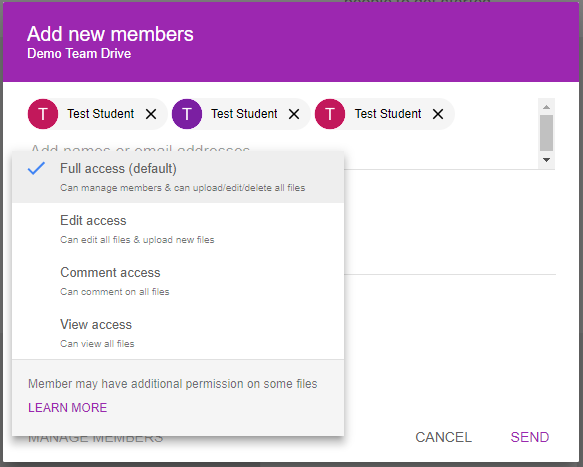
 Repeat step 3 until all of the desired users are selected. Your screen should look similar to the below image.
 Click on the permissions dropdown (in red below).
 Select the desired permission level. This will apple to all of the users that you have selected in the previous step.
 Fill in a short message which will be sent to each of the users you have selected. Alternatively, check the Skip sending notification box to prevent any message from being sent.
 Click Send (or Add, depending on the state of the Skip sending notification check box).
Managing and Removing Team Drive Members
You must have full permissions to the given team drive to manage or remove members.
It is possible to downgrade your own permissions and to remove yourself from the team drive. If you attempt to do either you will receive an additional warning prompt.
Navigate to the desired Team Drive. Click on the name of the Team Drive (below the search bar) and click Manage members. Click on the dropdown to the right of the name of the person that you want to change or remove. Click on the desired permission level to change permissions or click Remove member to remove their access entirely.Moving Files from My Drive to Team Drives