
Configuring Google Drive File Stream
Google Drive File Stream is an application that enables access to Google Drive and Google Team Drive files as if they were network drives (like the U and P drives). This method of access provides a best of both worlds scenario that combines the speed of a local file browser with all the benefits of the cloud. This article details the self-service process of installing, configuring, and troubleshooting problems with Google Drive File Stream.
Installing Google Drive File Stream
Google Drive File Stream cam be installed using the FileWave Kiosk. Detailed instructions are located are available in the Using the App Portal on Windows KB article (link).
Configuring Google Drive File Stream
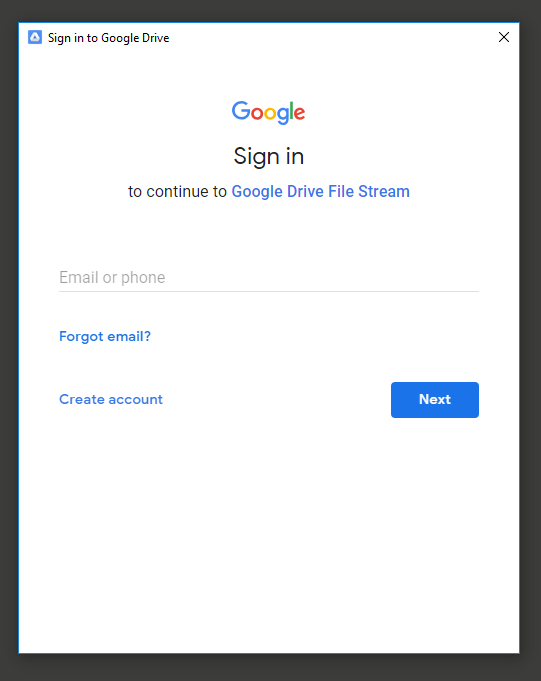 On the next page you will be prompted for a password. Enter your email password and click Next.
 Once you have signed in, you will be presented with a short set of slides which provide some helpful information about Google Drive File Stream. At this point the setup is complete. Click OPEN GOOGLE DRIVE FOLDER to be taken to your files.

Accessing Files Using Google Drive File Stream
Google Drive File Stream is accessed in the same way the all other network drives (like U and P) are accessed. The quickest way is to use the folder icon on the task bar.
 Double-Click Google Drive File Stream (G:).

Understanding Icon Badges
There are three basic badges that indicate the status of a file in Google Drive File Stream. They are as follows:
Uploading
This state may also be represented by the absence of a badge.
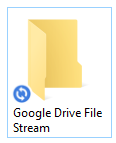
The file is in the process of being uploaded and is not yet available from the cloud.
Available Online

The file has been uploaded and can be opened as long as there is an available internet connection.
Available Offline

The file has been uploaded but a copy has been kept offline so that it can be used without access to the internet.
Online and Offline Files
By default, all files in Google Drive File Stream are stored in the cloud. For most files, this is the best option. There are some situations, though, where it makes sense to store files offline. This is helpful when working from a location with no internet or very slow internet or when dealing with large files like videos.
Make a file Available Offline
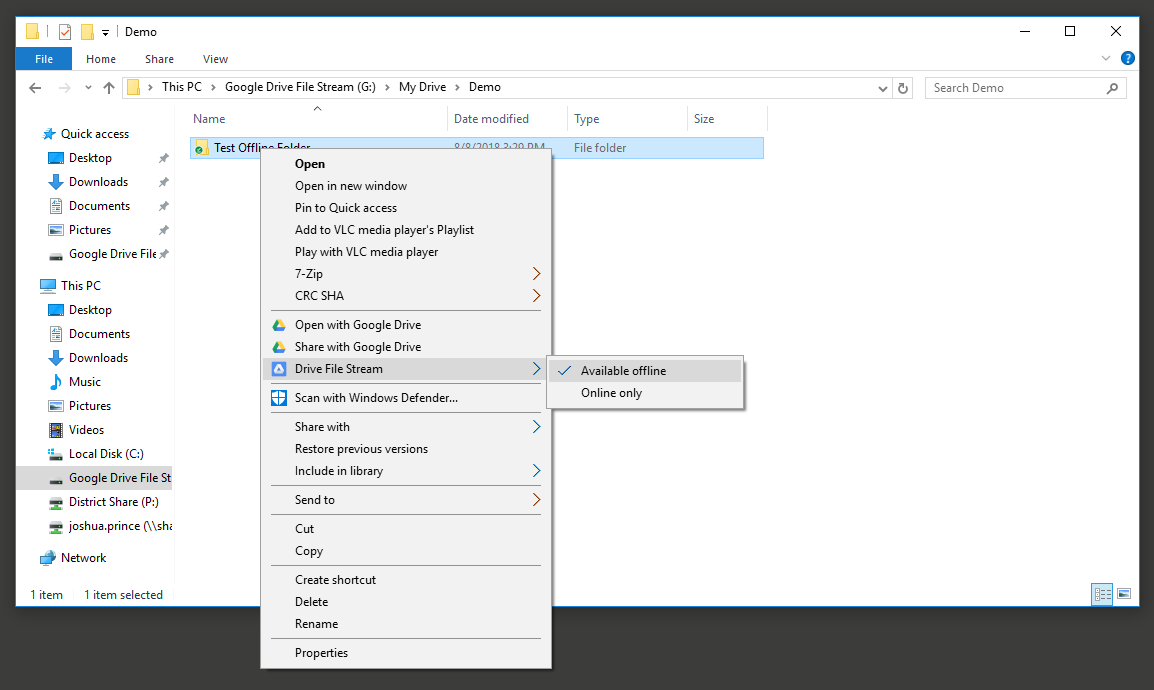 The badge on the icon for that file should change from a cloud to a green check.
Make a file Online Only
The badge on the icon for that file should change from a green check to a cloud.
Troubleshooting
Google Drive File Stream is no longer showing up as a drive
Sometimes the Google Drive File Stream application will stop working and need to be started again. The process can usually be accomplished by rebooting but can also be accomplished with the following steps.
Type File Stream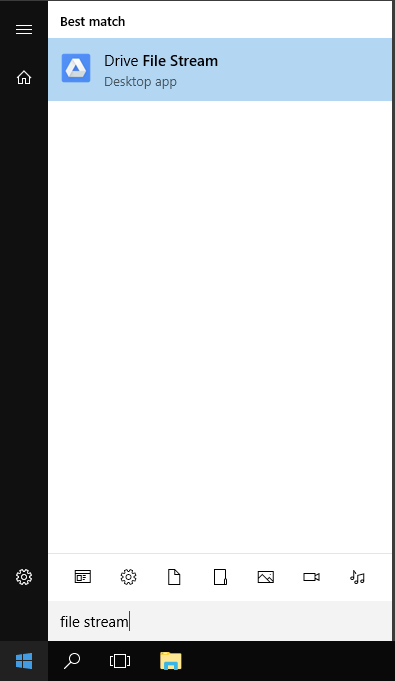 Click Drive File Stream