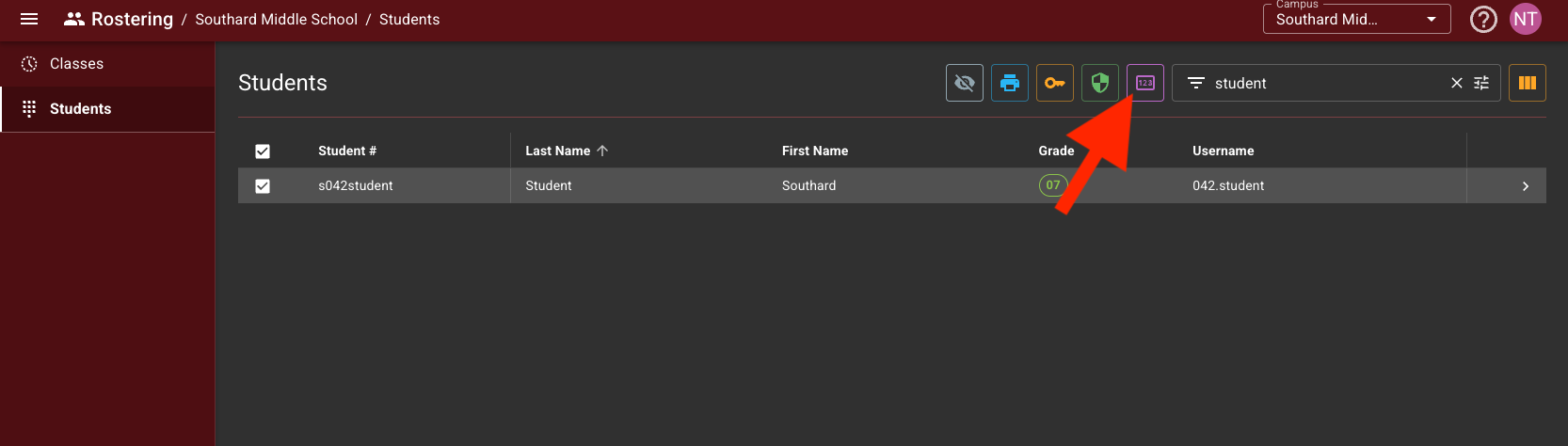
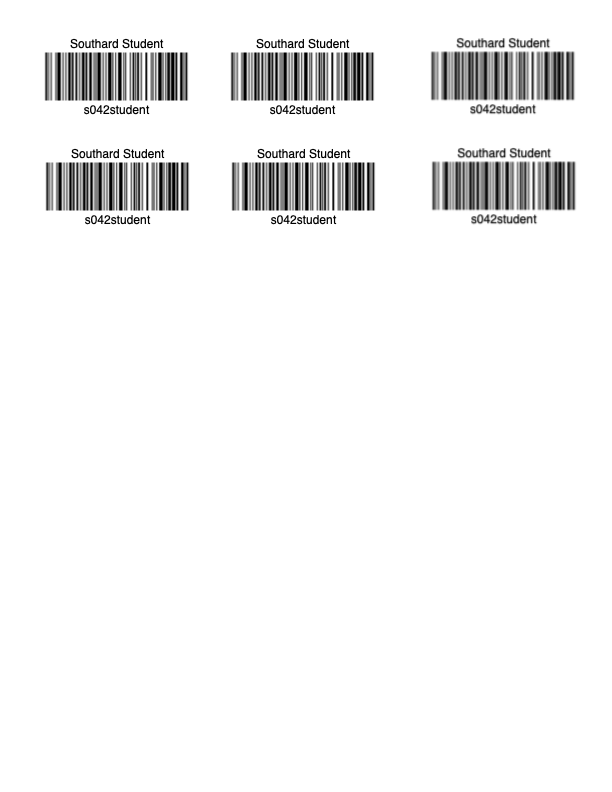
Lunch Barcodes
Printing Lunch Barcodes
Teachers are able to print lunch barcodes for their students using the Rostering Portal available in ClassLink.
-
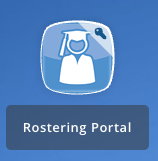
Click on the Rostering Portal in ClassLink.
- (Alternatively, go to https://rostering.princetonisd.net and click Sign In with ClassLink)
- (Alternatively, go to https://rostering.princetonisd.net and click Sign In with ClassLink)
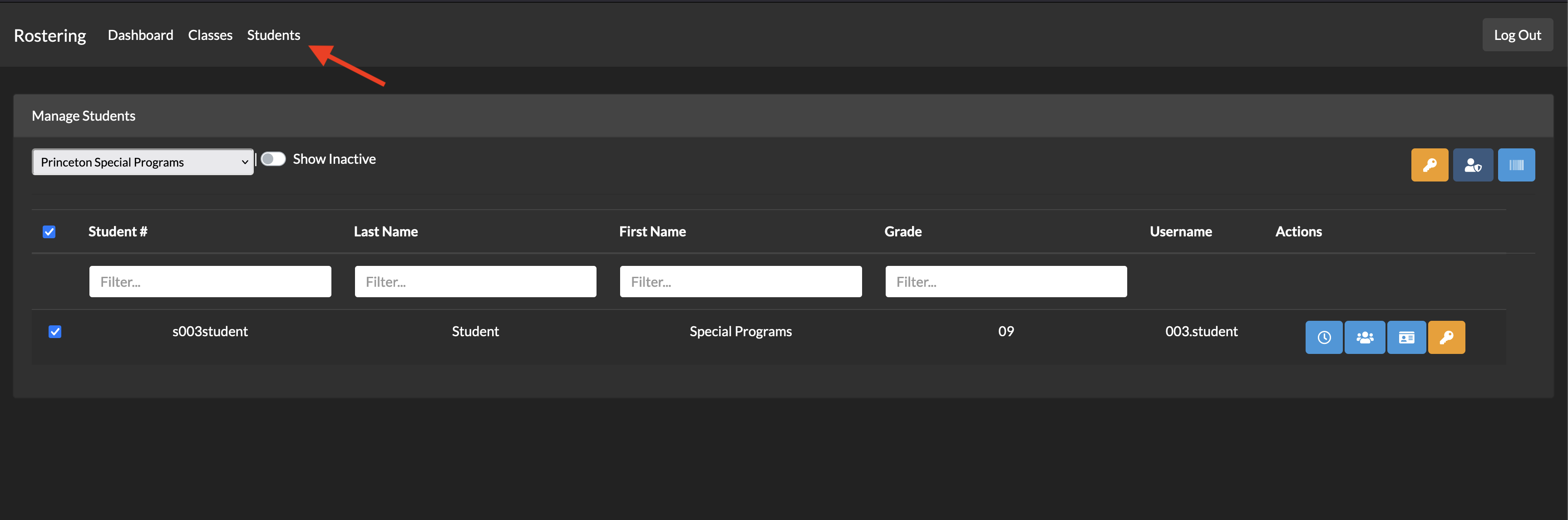
Onthe top of the page, click Students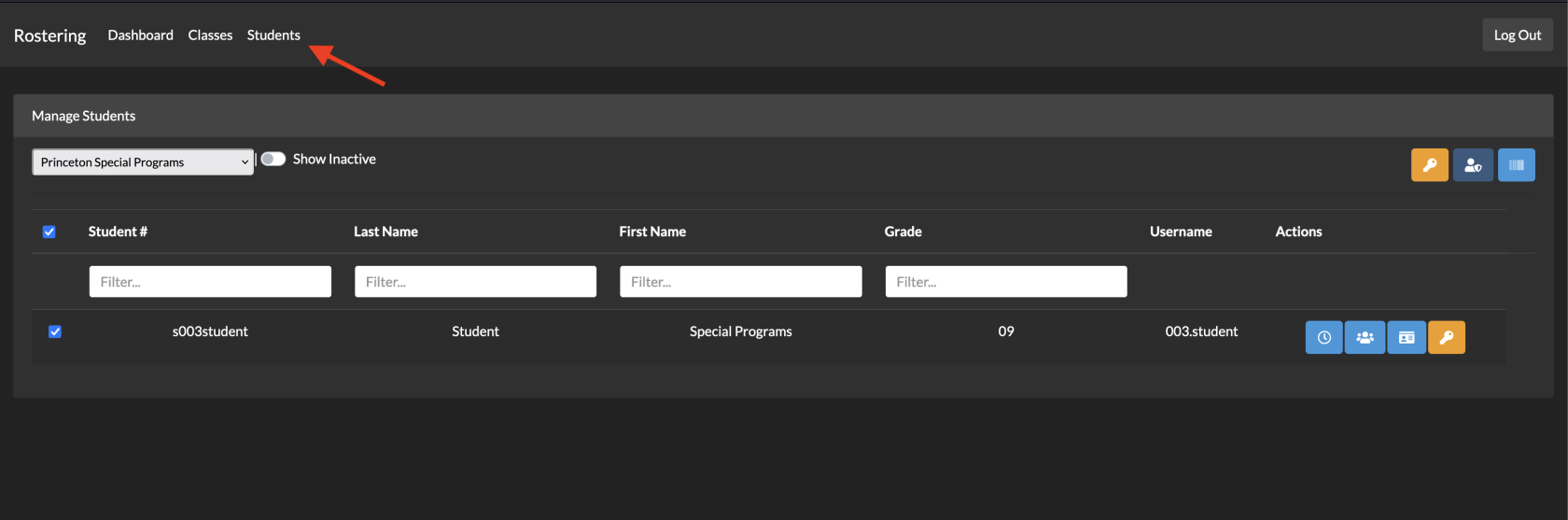
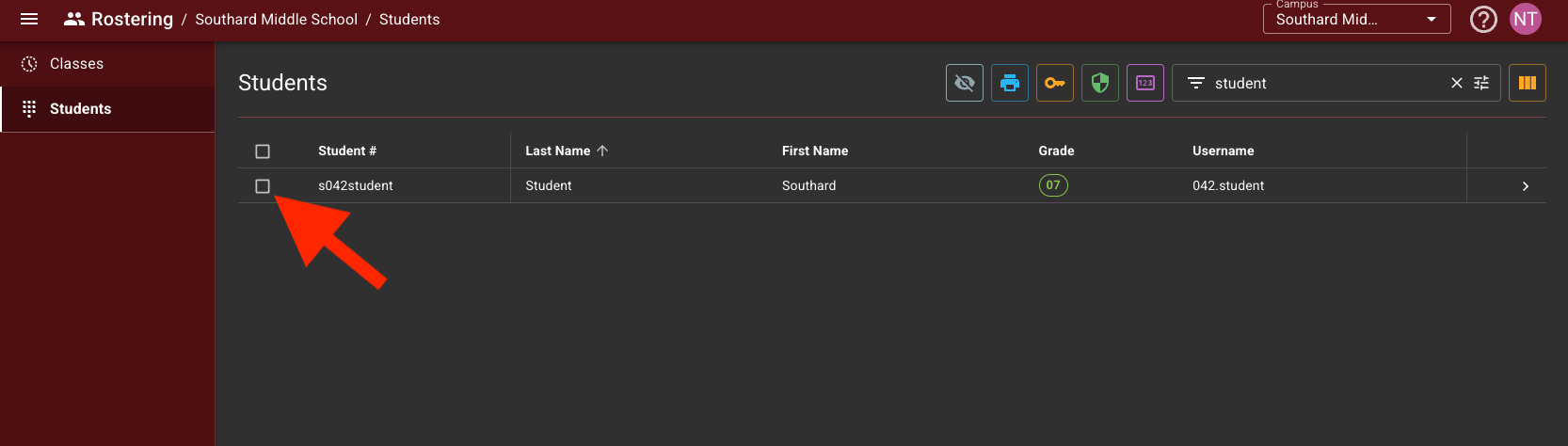
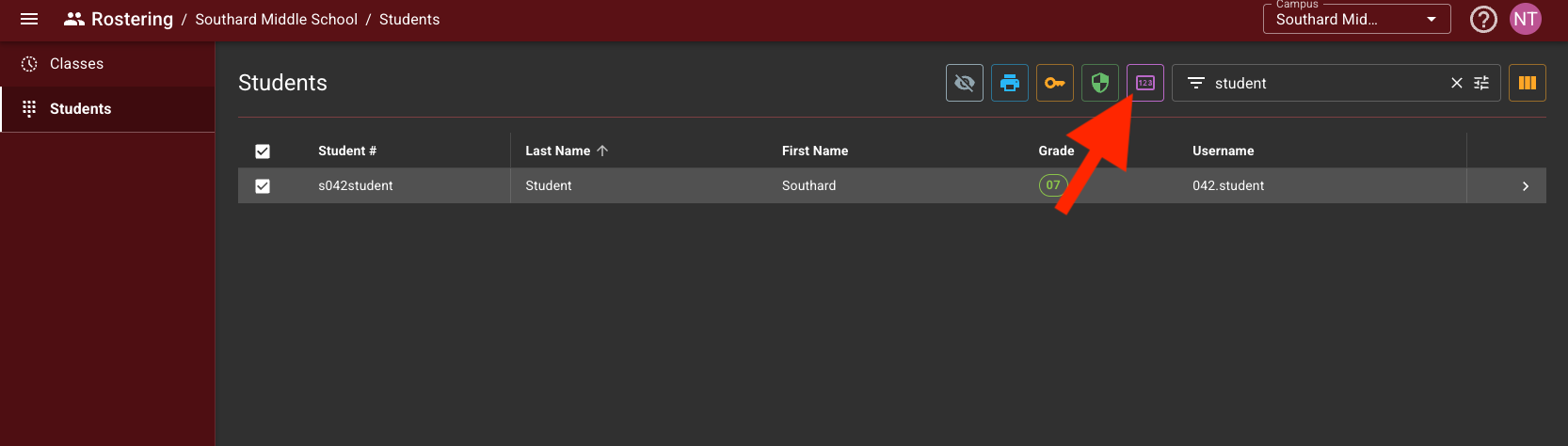
Select the students you want to print using the check boxes on the left
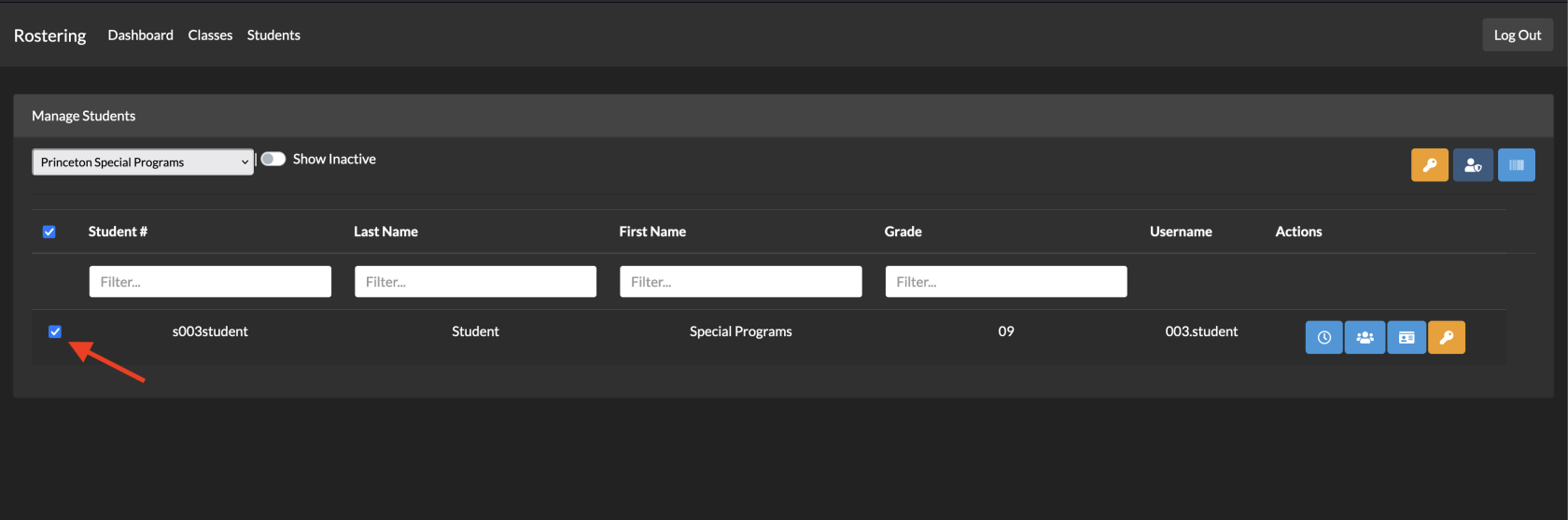
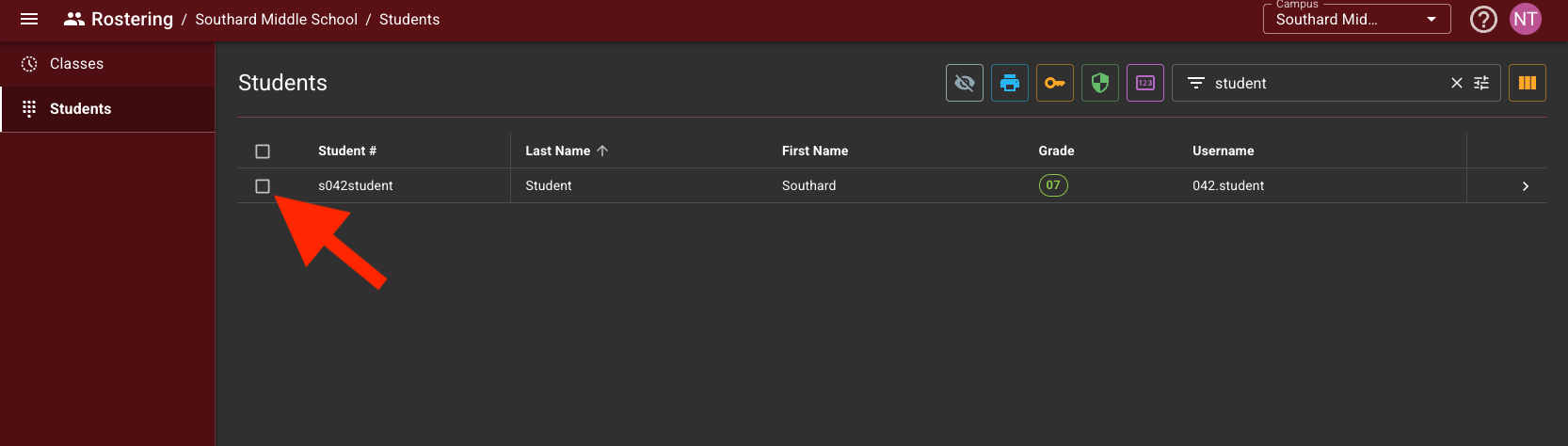
-
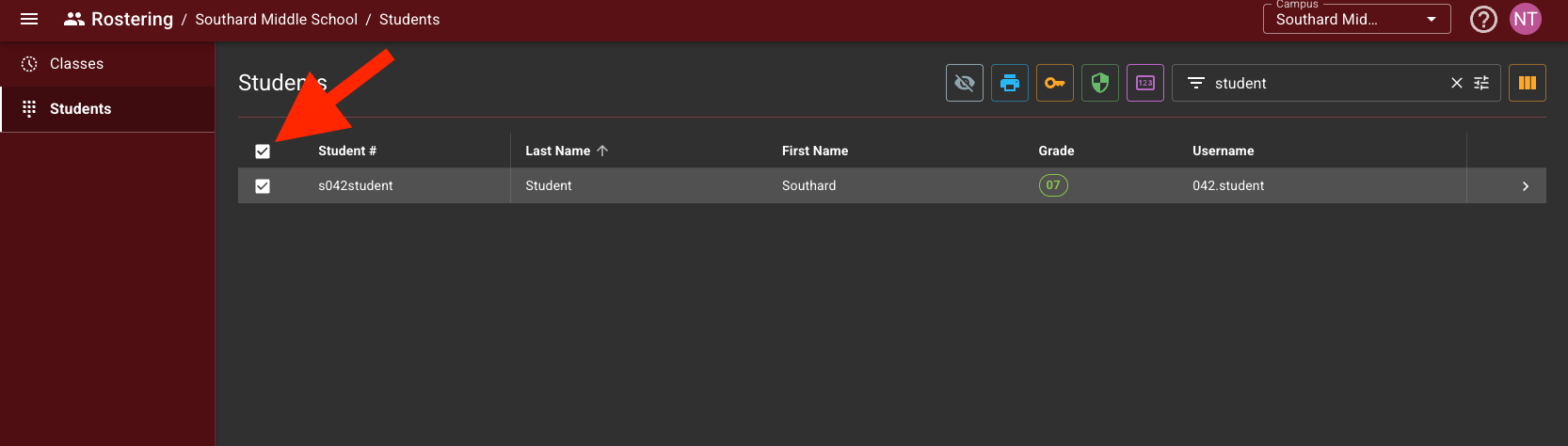
To select all students, click the check box on the header row
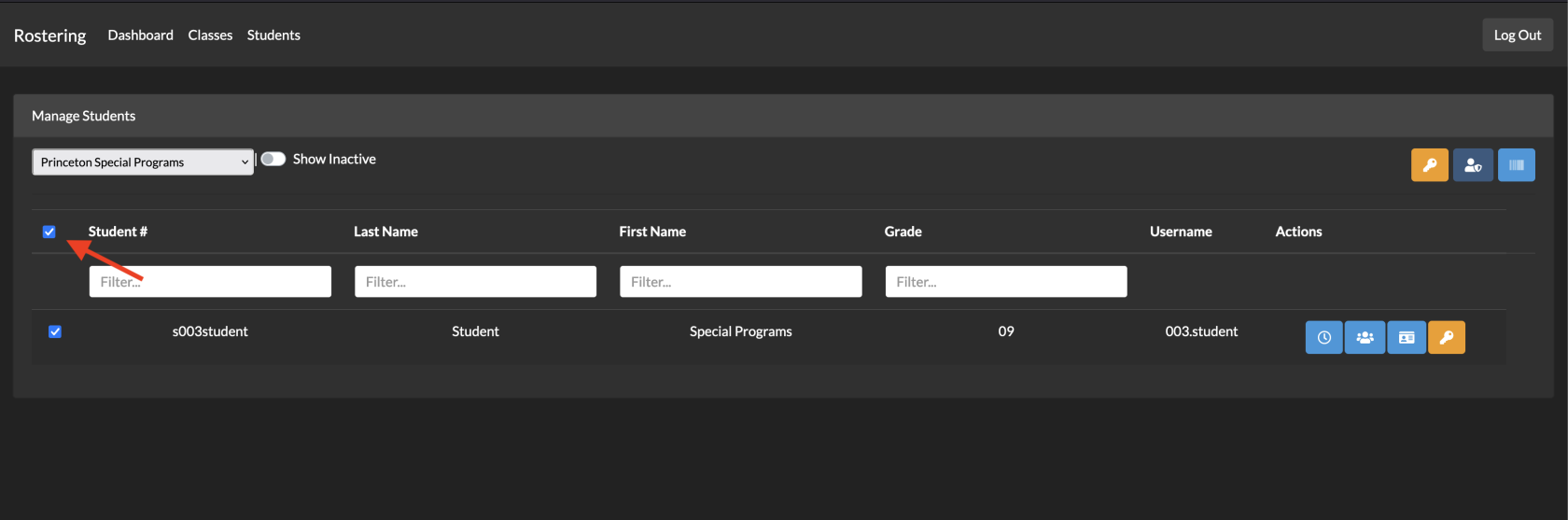
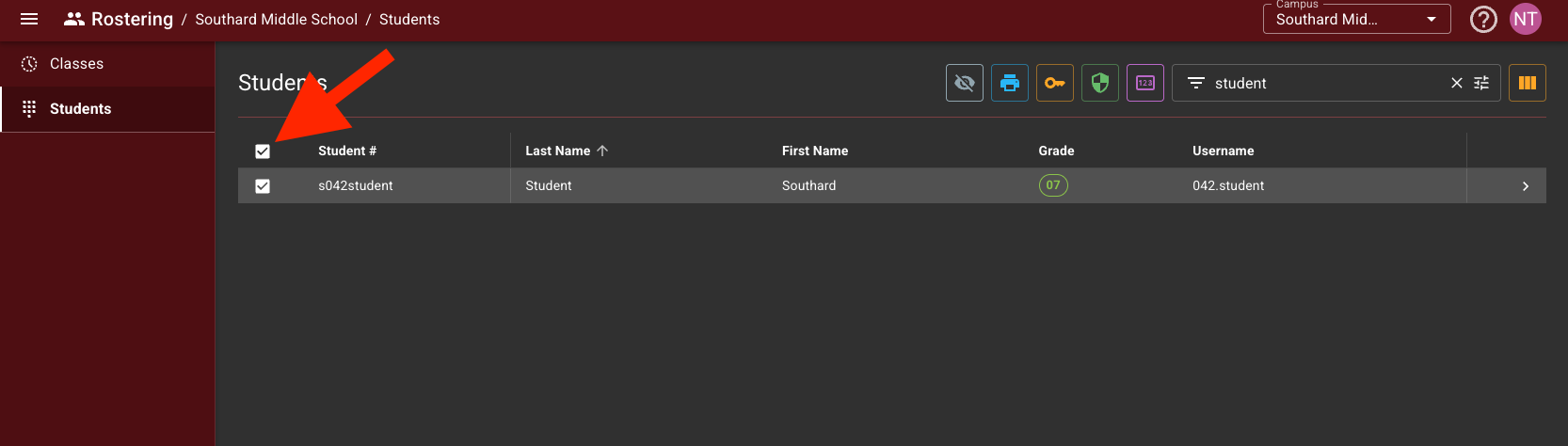
-
- Click the
light bluepurple barcode button at thetop-righttop of theManage Students boxtable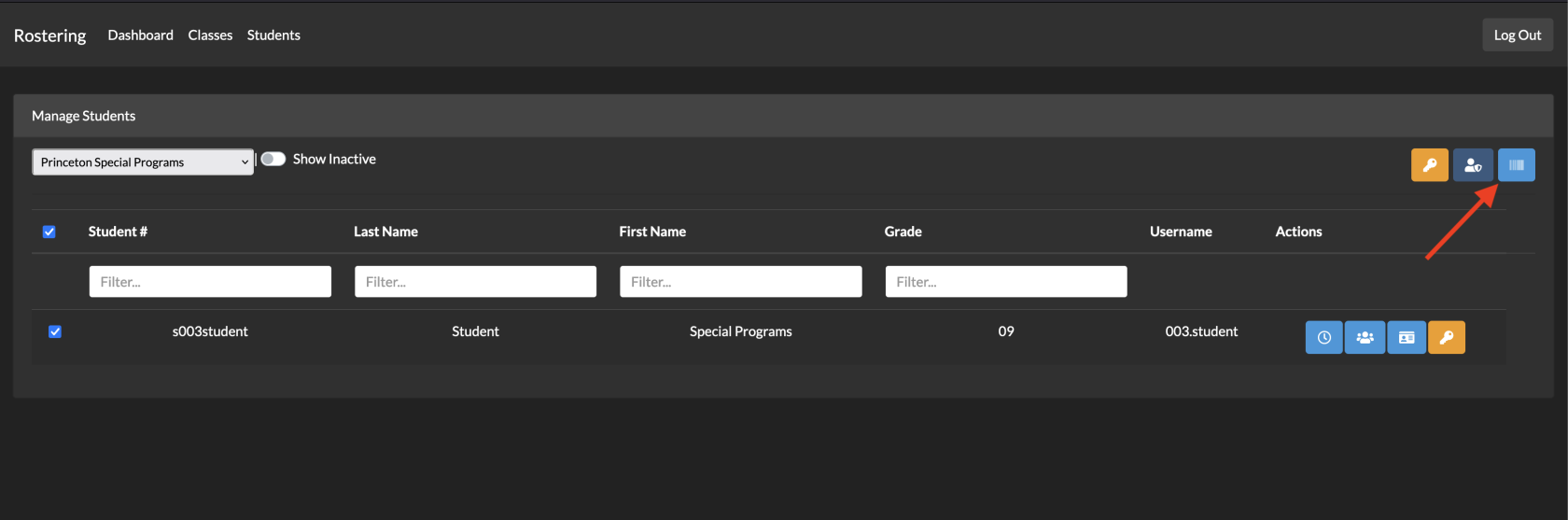
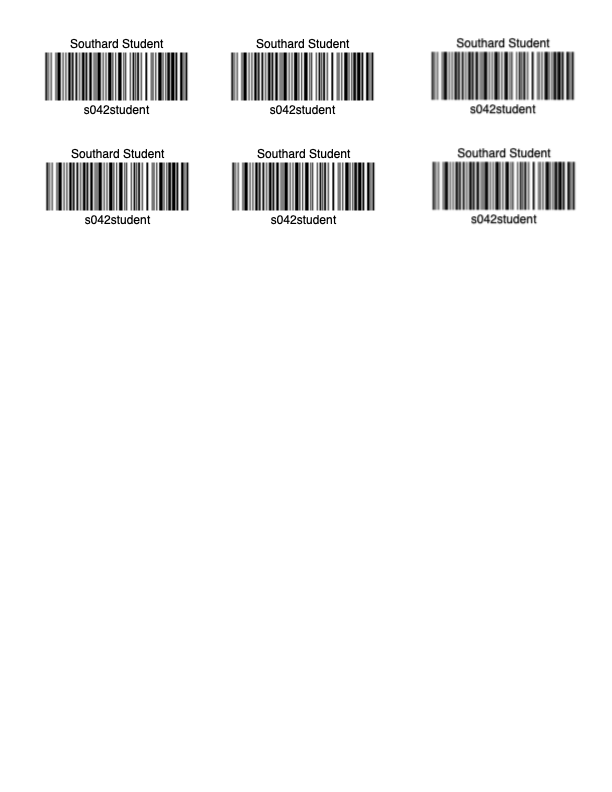 A PDF will be generated which can then be printed, cut, and laminated